Test
All the test techniques.
- Work with NVDA
Run automated accessibility checkers
While no automated accessibility checker will find all issue, it is a great resource for developers, content authors and site owners. By testing with and addressing issues identified by an automated accessibility checker a baseline of accessibility is established.
Microsoft’s Accessibility Insights for Web
Microsoft’s Accessibility Insights for Web is a Chrome or Edge browser extension, built on Deque’s axe rules engine. Accessibility Insights for Web provides the same information as axe in a more user friendly visual way. Providing information about violations, including references to the Web Content Accessibility Guidelines (WCAG) and some directions on how to fix the violations.
Microsoft’s How to complete a FastPass provides the step by step directions for using Accessibility Insights for Web as an automated accessibility checker.
Microsoft Office Accessibility Checker
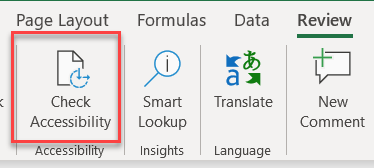
Microsoft has a version of the Accessibility Checker for Windows, macOS and their online Office products. No need to install any additional software.
Before sending or posting an Office document that will be shared, it should be checked for accessibility.
Microsoft provides step by step directions on using the Accessibility Checker.
Adobe Accessibility Checker for PDFs
If your distributing a PDF via email or via a website, the document should be accessible. If the document was originally created from an accessible Microsoft Office document, spreadsheet or presentation you are well on your way. Because the title of a PDF can only be set within Adobe, the Adobe Accessibility Checker for PDFs should be run on any PDF before distribution. Adobe offers suggestions for how to address issues found but often it is easier to remediate accessibility issues in the source documentation.
Simple manual tests
While not everyone will be an accessibility expert there are some simple test that anyone can do to improve accessibility.
Colour Contrast Analyzer
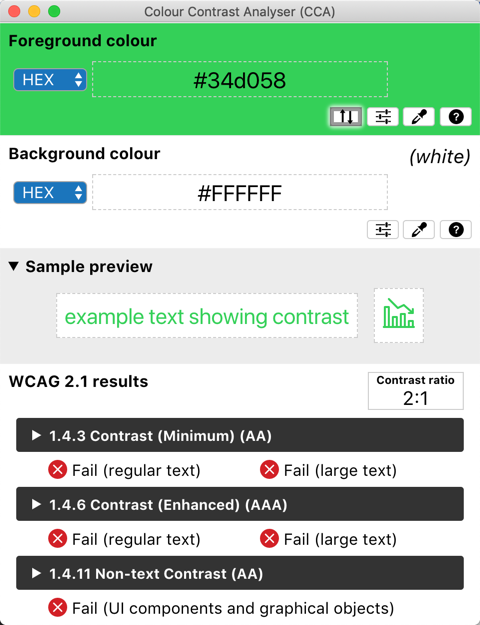
Most automated testing tools will highlight the need to manually test the color contrast of text over images, but images of text or text embedded within videos might not be tested at all. An automated accessibility checker might only see a single element or page within a Carousels or an animated slide show.
While automated accessibility tools are getting better, they do still report some false positives and false negatives.
A specialized accessibility testing tool like TPGi’s Colour Contrast Analyser (CCA) is recommended to verified color contrast. To lean how to properly use this tool please read Manual Testing with the Color Contrast Analyzer (CCA)
Common issues to look for:
- Does not meet the contrast minimum of 4.5:1 for regular text
- Does not meet the contrast minimum of 3:1 for large text
Content review
You are the expert on your own content, and therefore the best person to spot and correct some common accessibility issues related to content.
- Review the site looking for
- Review pages for
- Headings are not unique
- Heading content is not descriptive
- Link purpose is not provided as part of the link text - common errors are long URL address rather than link text or “click here” link text
- Links with the same destination use different link text
- Links with the same link text go to different destinations
- Review data entry for
- Instructions are not provided
- Control has no visible label
- Phone number fields rely on visual layout to explain Area Code, Prefix and Extension
- User cannot review legal or financial data before submitting it
- Fill out a form, deliberately leave a required field blank and with invalid data on another field
- Submit the form, to determine if the Error message should be clearer
- Review audio video content for
- No way to stop automatically started audio
- Content has no mechanism to pause, stop, or hide
- Live captions are not provided
- Transcript not provided
- Review any transcript found for the inclusion of sound or visual events that are essential for understanding, failure if transcript omits some important information
- Captions not provided
- Audio description is not provided
Review keyboard only support
One of the most important accessibility features is the ability to use the keyboard, rather than the mouse, to complete all computer based activities. Individuals with mobility impairments or tremors often find using the keyboard easier than using a mouse that requires fine motor skills. The mouse also requires hand-eye coordination that individuals with vision impairments could find difficult.
- Press and hold the Tab to determine whether or not the keyboard focus can move through the entire page and cycle back to the beginning,
- With focus on the address bar press the Tab key
- If the first element isn’t a “Skip to Main” option there is No mechanism is provided to bypass blocks of content or controls
- If there is a “Skip to Main” like functionality, activate it to see if the top level navigation elements are skipped. If not the mechanism designed to bypass blocks of content/controls is not working properly
- Use the Tab key to move slowly, element by element, through the page. Looking for the following common errors:
- Element does not change its appearance when it has focus
- Focus can move to a control that is not visible
- Control does not receive keyboard focus.
- Focus moves to a non-interactive control
- Site does not have help documentation for keyboard behavior.
- Focus does not move to newly requested dialog/control
- Focus is unexpectedly moved to a new window/dialog
- Actions is unexpectedly performed on focus vs on user action
- Context is changed unexpectedly based on input
- Form submission process does not allow for review or editing
- Focus is programmatically removed
- Logical focus order isn’t provided
- After tabbing to a control test for Control does not follow traditional keyboard behavior.
- Links should activate by pressing Enter
- Buttons should activate by pressing Spacebar or Enter
- Esc should dismisses dialogs, closes dropdown menus and comboboxes
- Checkboxes and toggle buttons should change their state by pressing Spacebar
- Radio button groups, list selections, tab controls and menus should support arrowing between the options, tabbing away from the group and Spacebar or Enter to make a selection
- Look for any actions that are only available to mouse users
Browser and system settings
The final tests in this section are to modify the preset defaults in the browser and operating system to insure your page/site continues to operate well.
- Adjust your browsers zoom level to 200% and manual review for
- Review the page with your Operating System High Contrast setting enabled
- Adjust your operating systems font size to large and manual review for
Accessibility testing with assistive technologies
Usability testing with individuals with disabilities or testing using assistive technologies is the true test of the accessibility. However this level of testing is not as straight forward as the others discussed so far. When testing with assistive technologies it’s important that they are used in the manner they were designed and with common settings enabled. Equal Entry partners with LCI Tech to do some of this work - read Equal Entry and LCI Tech Partner for an Enhanced Accessibility Experience for more information!